4.1 User Account Application
4.1.1 User account application
Each user using the computing platform is affiliated to one or more experiments, he/she can have a personal account (AFS account) and use the computing and storage resources of each experiment only after they get the approval from the person in charge from each experiment. AFS account application process is shown in Figure 1.

Figure 1 Computing Center AFS account aaplication process
-
new users (no unified authentication account) through "account application page" (shown in figure 2) fill in relevant information and choose their belonging to the experimental application of account submission.The system will submit the application for unified authentication and afs accounts at the same time. The service will automatically send a verification email. Please click the email authentication link.After opening the link, follow the prompts on the page and enter the password (the password you filled in at the beginning of registration).Success will show the unified authentication account registration is successful, and the unified authentication home page will show the application time and status of afs.
-
have unified authentication account user, please login directly "unified authentication" below 3 click the area " apply " fill in the information to submit.Afs application time and status will be displayed on the home page after success
"Experiment leader" will be received by the user management system sends the user to apply for account related email, only reply, head of the "agreed to the user application" mail, computing center will build AFS account for the user.After the AFS account is established, the applicant will receive an email notification about the account name and password and the relevant user manual.
New user (no unified authentication) online account application address:https://newlogin.ihep.ac.cn/admin/register
Unified authentication user online application afs account
address:https://newlogin.ihep.ac.cn
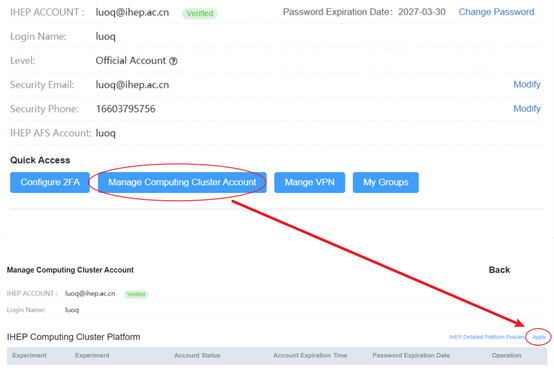
Figure 2 unified authentication user apply afs account
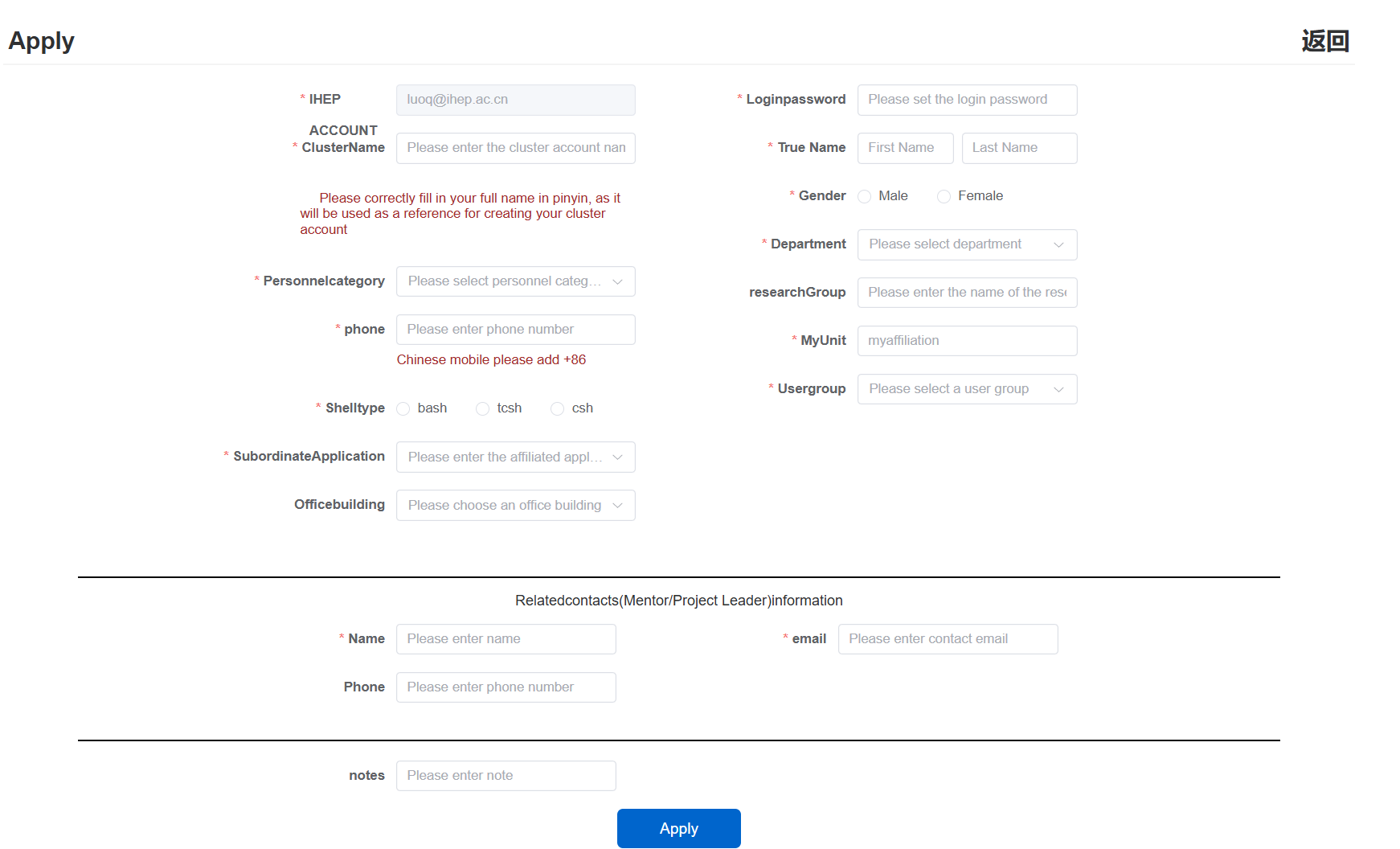
Figure 3 application form for new users of computing center
-
Note:
-
Make sure the email address in the application form is valid. After the application is approved, this email address will be used to receive the notification of the user name and initial password. And all the announcements related to the computing platform will be sent to this email address.
- Please choose the “staff type” according to the user's real situation. The account of different “staff type” is of different valid period.
- For security reasons of your user account, please use a strong password. The computing platform requires that the user password must contain at least 10 characters and at least three of the following character types: letters, numbers and special characters. Password does not meet the above requirements will not be accepted by the system.
- User password is valid for 365 days. Uses will get three email alerts respectively in 30 days, 7 days and 2 days before the password expires. Please change your password as soon as possible before the expiration date; otherwise, the user account will be blocked automatically.
- If the user wants to associate another email address to the user account, please inform the Computing Center of the update.
-
- if the uniform password reset is changed, the afs password will also be changed.
-
Contact: Tel: 88236855 (working hours) E-mail: helpdesk@ihep.ac.cn; ihep_computing_service@ihep.ac.cn
4.1.2 Password Management
4.1.2.1 Reset password when you forget it
User account has been integrated with IHEP Single Sign On (SSO) account. You can vist https://login.ihep.ac.cn/findPsw.do?act=stepOne to find your SSO account's password.
4.1.2.2 Change password
User account has been integrated with IHEP Single Sign On (SSO) account. You can login IHEP SSO ( http://newlogin.ihep.ac.cn ) to change your password.
4.1.3 ssh-key login
4.1.3.1 create ssh-key,set the public key into authorized_keys
### create ssh-key
[username@lxlogin-001 ~] $ ssh-keygen
Generating public/private rsa key pair.
Enter file in which to save the key (/afs/ihep.ac.cn/users/h/huqbtest/.ssh/id_rsa):
/afs/ihep.ac.cn/users/h/huqbtest/.ssh/id_rsa already exists.
Overwrite (y/n)? y
Enter passphrase (empty for no passphrase):
Enter same passphrase again:
Your identification has been saved in /afs/ihep.ac.cn/users/h/huqbtest/.ssh/id_rsa.
Your public key has been saved in /afs/ihep.ac.cn/users/h/huqbtest/.ssh/id_rsa.pub.
The key fingerprint is:
SHA256:ZgkYg8jNMiqXAfTJMLRq6HykPV+qmSmM5YftT2Nk1QA huqbtest@ccopt.ihep.ac.cn
The key's randomart image is:
+---[RSA 2048]----+
|=Bo.o E..        |
|.+Oo.+   o       |
|..o*. . . .      |
|= o    o .       |
|+o .  o S        |
|+ =  o o         |
|o* *  +.         |
|.o+ Ooo.         |
|  .Bo+.          |
+----[SHA256]-----+

### set public key into authorized_keys
[username@lxlogin-001 ~]$ cat ~/.ssh/id_rsa.pub >> ~/.ssh/authorized_keys
4.1.3.2 Check authorized_keys and known_hosts link to ../public/。
[username@lxlogin-001 ~] $ ll ~/.ssh/
total 17
lrwxr-xr-x 1 bin      u07    55 Dec 29  2022 authorized_keys -> /afs/ihep.ac.cn/users/h/huqbtest/public/authorized_keys
-rw------- 1 huqbtest u07  1675 Jul  5 17:38 id_rsa
-rw-r--r-- 1 huqbtest u07   407 Jul  5 17:38 id_rsa.pub
lrwxr-xr-x 1 bin      u07    51 Jan  4  2023 known_hosts -> /afs/ihep.ac.cn/users/h/huqbtest/public/known_hosts
-rw------- 1 huqbtest u07 11745 May 26  2022 known_hosts.old
If not link to ../public/, create softlink with the follow command.
[username@lxlogin-001 ~] $ cd ~/.ssh
[username@lxlogin-001 ~] $ mv {authorized_keys,known_hosts} ../public
[username@lxlogin-001 ~] $ ln -s ../public/authorized_keys ./
[username@lxlogin-001 ~] $ ln -s ../public/known_hosts ./
4.1.3.3 chmod the authorized_keys file。
[username@lxlogin-001 ~] $ chmod 600 ~/public/authorized_keys
[username@lxlogin-001 ~] $ chmod 700 ~/.ssh
[username@lxlogin-001 ~] $ chown $yourusername ~/public/authorized_keys
4.1.4 Extend Account
login https://ink.ihep.ac.cn, click Dashboard, and extend your account under the User Information tab -> Account expiration. AFS account extend is shown in Figure 4.
Note: Account extension requires the experiment admin's approval to take effect.
Tip : If your account has already expired, you will not be able to log in to INK to renew it yourself. In this case, visit http://ccsinfo.ihep.ac.cn (the backup account management portal) and log in with your unified authentication account. On the homepage, go to user information → Account expiration to submit the extension request, which works the same way as the INK Dashboard. The extension still requires the experiment admin's approval to take effect.
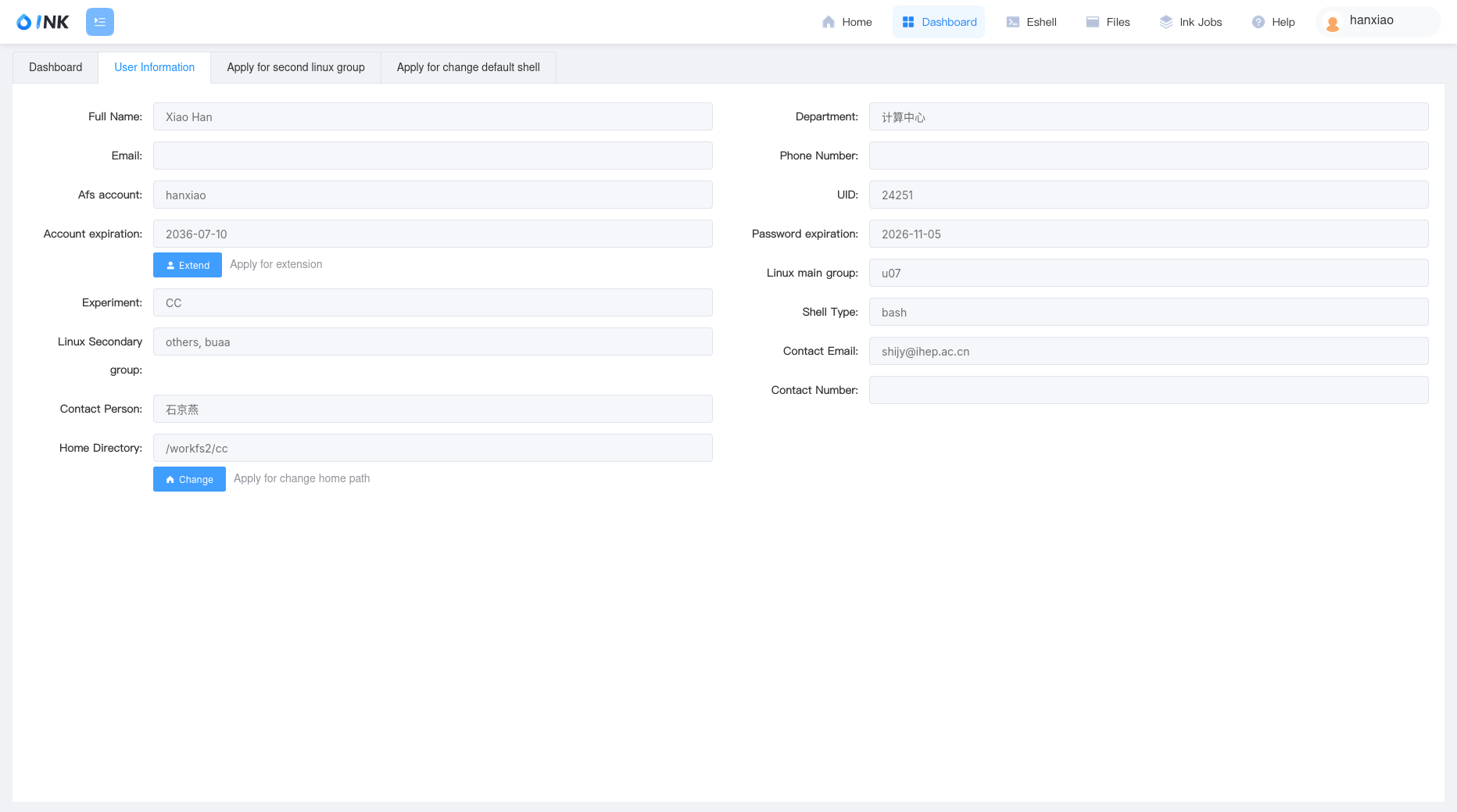
Figure4 Apply to Extend Account
4.1.5 Apply to add another Linux group
User want to apply another linux group, login https://ink.ihep.ac.cn, click Dashboard, and apply under the Apply for second linux group tab, submit secondary group apply, as shown in Figure 5.
Note: Adding a secondary group requires the experiment admin's approval to take effect.
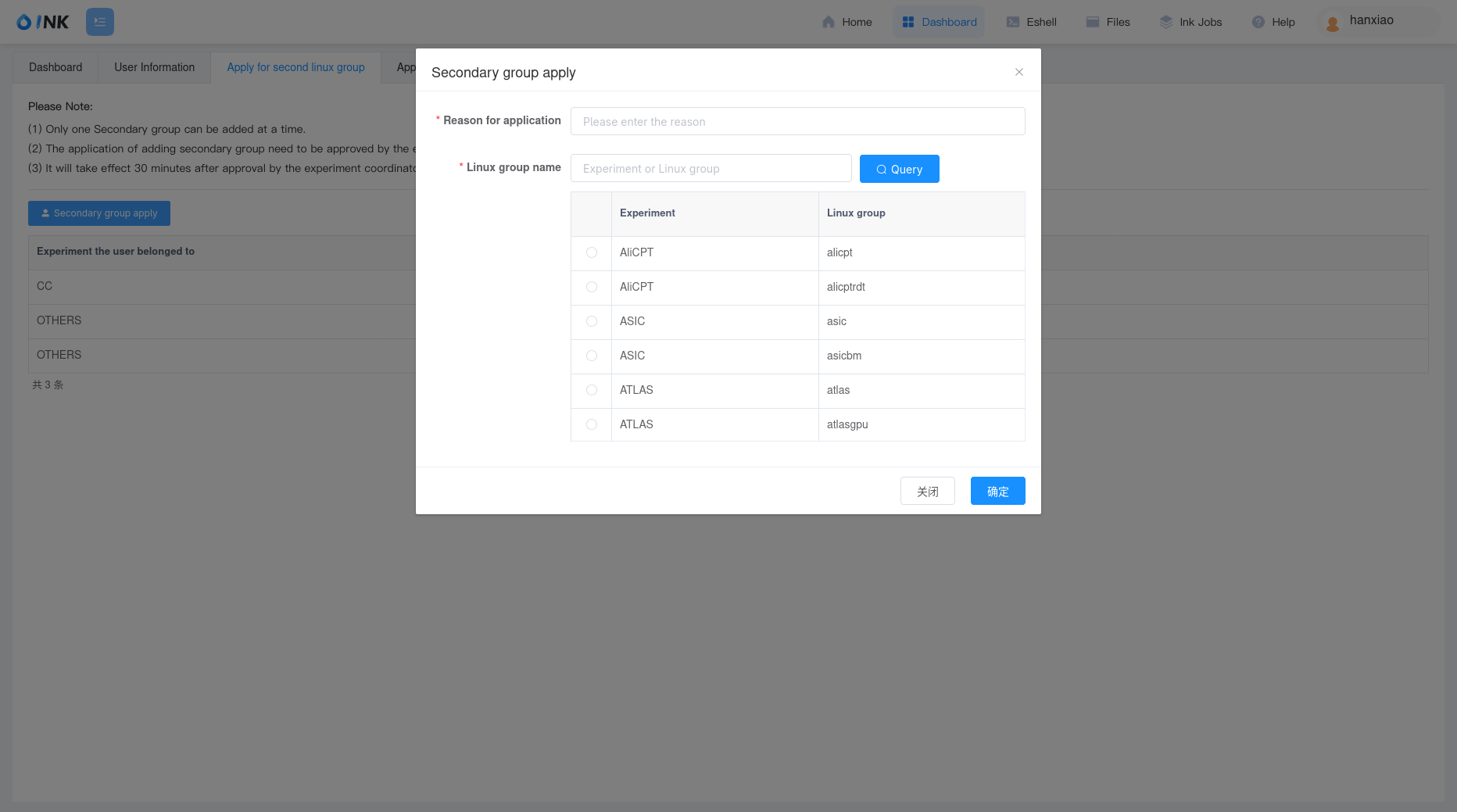
Figure5 Apply to add another Linux group
4.1.6 Change home directory
Users can log in to https://ink.ihep.ac.cn using their unified authentication account, click Dashboard, and modify their home directory under the User Information tab -> Change home directory. The system will provide the data directories supported by the experiment corresponding to the user's primary group as home directory options, along with AFS public directories for selection.
Steps: 1. Log in to https://ink.ihep.ac.cn with your unified authentication account 2. View the available home directory list under Dashboard -> User Information -> Change home directory 3. Select the appropriate home directory based on your needs and submit
After the change, please re-login for the new home directory to take effect.
Note: Changing the home directory takes effect automatically without approval, but due to the cluster size, it may take approximately 30 minutes.
4.1.7 Change default shell
Users can log in to https://ink.ihep.ac.cn using their unified authentication account, click Dashboard, and change their default shell under the Apply for change default shell tab. Currently supported shell types include: bash, tcsh, csh, zsh.
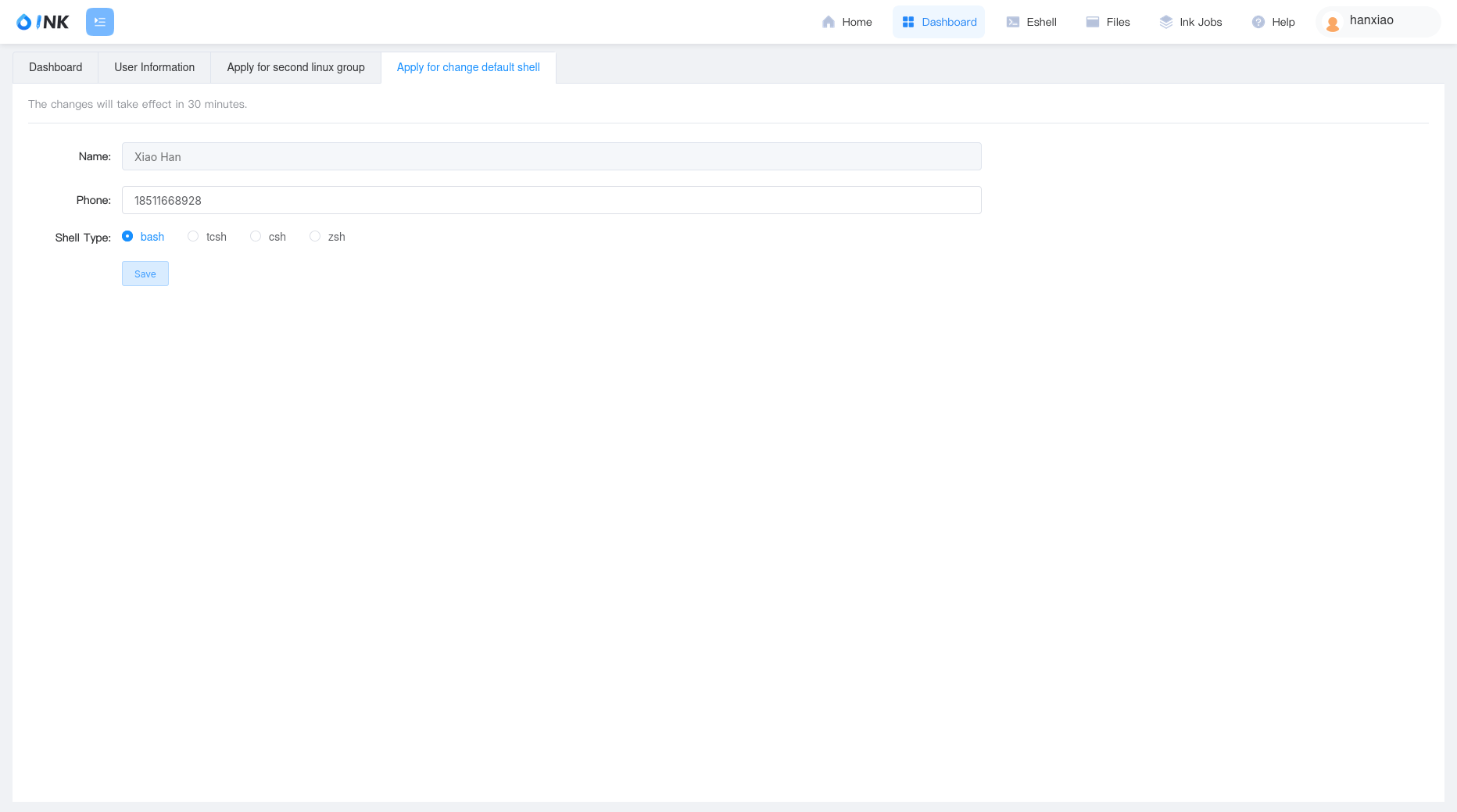
Note: Changing the default shell takes effect automatically without approval, but due to the cluster size, it may take approximately 30 minutes.
有问题?输入后跳转到对话页继续交流