9.2.1 Shandong University
1 Shandong University Computing Environment
1.1 Login Nodes
Login nodes are the only entry point for users to access the computing platform. Users edit files, debug programs, and submit jobs on login nodes. After logging in successfully with an account and password, users can access the corresponding computing resources.
Note: The login nodes can currently be accessed only from the university network or after connecting to the university VPN.
| No. | Login Node OS | Domain Name | Note |
|---|---|---|---|
| 1 | CentOS Linux release 7.8 x86_64 | login01.hepg.sdu.edu.cn | Direct external login |
| 2 | CentOS Linux release 7.8 x86_64 | login02.hepg.sdu.edu.cn | Direct external login |
| 3 | CentOS Linux release 7.8 x86_64 | login03.hepg.sdu.edu.cn | Internal jump host from login01 or login02 |
1.2 SSH Login to the Cluster
This section describes how to log in to the cluster through SSH on Linux, Windows, and macOS.
1.2.1 Linux
On Linux, the easiest way is to log in to the cluster directly from a terminal through SSH.
1.2.2 macOS
The login method on macOS is the same as the Linux method.
1.2.3 Windows
Windows does not include a native SSH client in older versions, so third-party software is needed. Windows 10 includes a native SSH client, and OpenSSH can be added through optional features.
1) SSH Clients
Common SSH clients on Windows include:
- PuTTY - A classic and lightweight SSH client.
- MobaXterm - Includes X server and SSH support, with tabbed sessions.
- Solar-PuTTY - A PuTTY-based client with tab support.
- WinSCP - A convenient SSH and file transfer client.
- Bitvise SSH - A free SSH client.
- Xshell - Commercial software with free personal and educational editions.
- SSH Shell Client
- WSL for Windows - One of the preferred options on Windows 10, providing a complete Linux terminal environment.
2) Login Example
The following example uses PuTTY to demonstrate cluster login.
-
Download and install PuTTY from the official website.
-
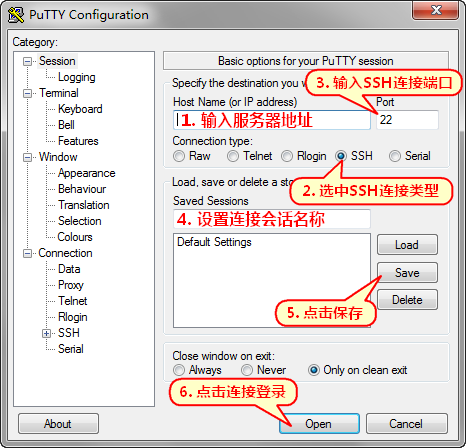
Open PuTTY, enter
user@hostnameinHost Name, and usually use port22. After filling in the information, clickSaveto save the session. If a saved session already exists, select it and clickLoad.
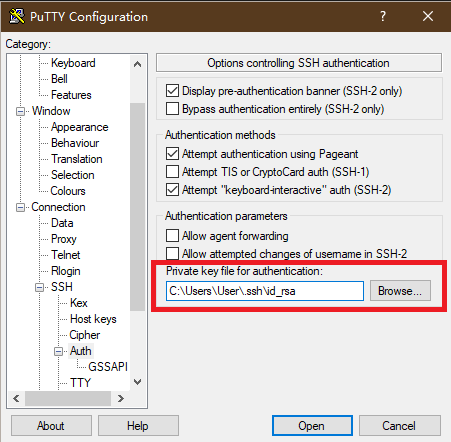
- To log in with a private key, set the private key path under
Connection->SSH->Auth.
- Click
Opento log in to the cluster. On first connection, PuTTY prompts for the server fingerprint. Choose yes or no. Choosing yes saves the fingerprint; choosing no does not. After saving the fingerprint, the same server will not prompt again. If it prompts again, the server fingerprint may have changed, for example after a system reinstall.
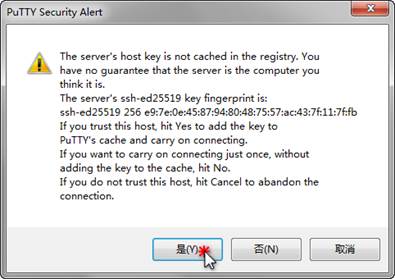
Figure 3.1-4 Ignore possible warnings during connection.
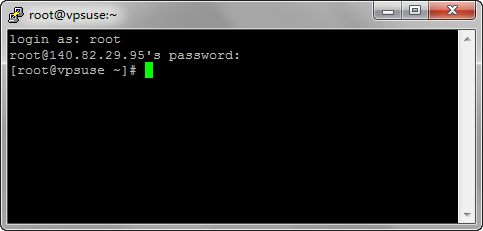
If no private key is selected, the system will ask for a password.
1.2.4 Password Change
Password changes must be performed on a login node.
[root@kerberos create_users]# ssh yanxf@login03
yanxf@login03's password:
Last failed login: Fri Jun  6 15:35:30 CST 2025 from 10.200.4.16 on ssh:notty
There was 1 failed login attempt since the last successful login.
[yanxf@login03 ~]$ kpasswd
Password for yanxf@SDUKRB5:
Enter new password:
Enter it again:
Password changed.
1.2.5 Data Copy and Migration
To copy data from an existing cluster or a remote server to the current directory, refer to the following command:
For more rsync usage examples, see this link.
1.3 Job Submission, Query, and Management
The cluster uses HTCondor as its job scheduling system. HTCondor supports high-throughput computing and is suitable for the current computing environment because it can quickly process large numbers of computing tasks.
Current cluster resources are listed below.
| Resource Type | Resource Quantity | Note |
|---|---|---|
| CPU | About 1000 cores | |
| GPU | None currently |
Queue and wall-time information:
| Group | Group quota | Default quota | Default wall time (hours) | Mid quota | Mid wall time (hours) | Long quota | Long wall time (hours) |
|---|---|---|---|---|---|---|---|
| bes3 | 384 | 350 | 20 | 10 | |||
| sdu | 644 | 600 | 30 | 14 | |||
| belle | 280 |
1.3.1 Job Submission
Before submitting a job, prepare a JDL job description file. The JDL file must specify the job script path, standard output file, and standard error file. Submit the JDL file to submit the job.
- Example job script
job.sh(for demonstration only; use the actual script for real jobs):
#!/bin/bash


echo "This job is running on $(hostname)."


echo "We're doing a simple operation:"
result=$(expr 1 + 1)
echo " 1+1=$result"


echo "Job Done!"
Note: The script must have executable permission. Set executable permission with:
- Write the job description file
job.jdl:
# do not change
universe = vanilla

# set the job script
executable = job.sh

# set output and error file name
output = job.sh.out.$(Cluster).$(Process)
error = job.sh.err.$(Cluster).$(Process)

# set the resource needs
# set the number of cpu core
#request_cpus = 2
# set the number of gpu card
#request_gpus = 2
# set the size of memory, unit is MB
#request_memory = 4000

# set experiment, group, walltime
+HepJob_Experiment = "SDU"
+HepJob_RealGroup = "sdu"
# if not use test or short walltime,
# keep it same with HepJob_RealGroup
+HepJob_VirtualGroup = "sdu"
# walltime need to select from 'default' or 'long'
+HepJob_Walltime = "default"
# combine the attributes above
accounting_group = SDU.sdu.default
#accounting_group = SDU.sdu.long

# select from AlmaLinux9 or CentOS7
+HepJob_RequestOS = "AlmaLinux9"

# do not change
+HepJob_SiteName = "sdu"

# 'True' means allow to propagate environments
getenv = True

# do not change
queue
The universe attribute usually does not need to be changed. The executable attribute is the path to the job script. The output and error attributes are the standard output and standard error files. The last line should end with queue and usually does not need to be changed.
Adjust the queue or wall-time related attributes according to actual needs:
+HepJob_RealGroup = "bes3"
+HepJob_VirtualGroup = "bes3"
+HepJob_Walltime = "default"
accounting_group = BESIII.bes3.default
- Submit the job with
condor_submit:
1.3.2 Query Job Status
- Query jobs submitted by a specified user, for example user
xiaoming:
- Query a specified job ID, for example job ID
1001:
- If the job status is
H, the job is held. Use the following command to view the hold reason:
1.3.3 Delete Jobs
- Delete jobs submitted by a specified user, for example user
xiaoming:
- Delete a specified job ID, for example job ID
1001:
1.3.4 HepJob Job Tool
HepJob can submit jobs without preparing a job description file.
- To submit a job, use
-gto specify the group:hep_sub job.sh -g sdu - For detailed HepJob command usage, see: http://afsapply.ihep.ac.cn/cchelp/zh/local-cluster/jobs/HTCondor/
1.3.5 Other References
For detailed HTCondor usage, see:
https://htcondor.readthedocs.io/en/stable/users-manual/index.html
More examples:
http://vivaldi.ll.iac.es/sieinvens/siepedia/pmwiki.php?n=HOWTOs.CondorSubmitFile
1.4 File Storage Service
1.4.1 User File Storage
This cluster uses Lustre as its file storage management system. Lustre is an open-source, scalable, high-performance, object-oriented parallel file system widely used on supercomputing platforms. More than 70% of the world's supercomputers use Lustre. Lustre consists of metadata servers (MDS), object storage servers (OSS), and clients. Metadata servers organize the storage devices on all object storage servers into a unified storage space and provide it to clients for mounting. Lustre is fully compatible with POSIX semantics. It is highly scalable, can manage tens of PB of storage, and provides very high performance, with aggregate bandwidth of tens or even hundreds of GB per second. However, because of limitations of Lustre metadata servers, it is not advantageous for managing massive numbers of small files, and it does not support erasure coding or replicas. Therefore, Lustre is mainly used for massive experiment data storage.
Current Lustre file system information is listed below.
| Directory | Purpose | Access Entry (Client) | Capacity | User Quota |
|---|---|---|---|---|
| /sdufs | Experiment data and user data | All nodes | 336 TB | |
| /sdufs2 | Experiment data and user data | All nodes | 460 TB | |
| /belle2fs/home | User data | All nodes | *TB | 5 GB per user |
| /belle2fs/bes3 | BES3 experiment data | All nodes | 250 TB | 7 TB |
| /belle2fs/belle2 | Belle II experiment data | All nodes | 200 TB | 14 TB |
| /belle2fs/sdu_hep | HEP experiment data | All nodes | 45 TB | 500 GB per user |
1.4.2 Check Directory Quota Usage
- In a specific directory, run
lsattr -pon any regular file (not a directory) to view the project ID of that directory.
This shows that the project ID of the directory is 1097.
- Run
lfs quota -p 1097 /belle2fsto check the quota usage of that directory.
# lfs quota -p 1097 -h /belle2fs
Disk quotas for prj 1097 (pid 1097):
    Filesystem    used   quota   limit   grace   files   quota   limit   grace
       /besfs5  1.362T*    50G     50G       -  293249       0       0       -
1.4.3 CVMFS Software File Storage
CernVM-FS provides a scalable, reliable, and low-maintenance software distribution service. It helps deploy software for high-energy physics on worldwide distributed computing infrastructures used for data processing applications. CernVM-FS is implemented as a POSIX read-only file system in user space through FUSE. Files and directories reside on standard web servers and are mounted under the common namespace /cvmfs, allowing user jobs to read software and run correctly.
The CVMFS system currently has 13 software volumes that provide software environments for different experiment jobs. The main volume information is listed below.
| Path | Purpose |
|---|---|
| /cvmfs/bes3.ihep.ac.cn | Software libraries required by BES3 |
| /cvmfs/bes.ihep.ac.cn | Software libraries required by BES |
| /cvmfs/cepc.ihep.ac.cn | Data analysis software for the CEPC experiment |
| /cvmfs/dcomputing.ihep.ac.cn | Data analysis software for distributed computing experiments |
| /cvmfs/gluex.ihep.ac.cn | Data analysis software for the GlueX experiment |
| /cvmfs/heps_ap.ihep.ac.cn | Data analysis software for the HEPS experiment |
| /cvmfs/juno.ihep.ac.cn | Data analysis software for the JUNO experiment |
| /cvmfs/lhaaso.ihep.ac.cn | Data analysis software for the LHAASO experiment |
| /cvmfs/mlgpu.ihep.ac.cn | GPU machine-learning software |
| /cvmfs/container.ihep.ac.cn | Container runtime environment |
Table 1. Overview of CVMFS software volumes.
1.5 Site Monitoring Service
Site resource monitor / SDU Resource Monitor:
Site operational monitor / SDU Operational Monitor:
https://sitemon.ihep.ac.cn/grafana/d/WDuJRvqGz/yun-xing-jian-kong-sdu-operational-monitor?orgId=1
有问题?输入后跳转到对话页继续交流