5.1 SSH Login
5.1.1 Login Nodes
The login nodes are the only interface by which users use the computation platform. Users edit files, debug programs and submit their job scripts on the login nodes. Users can use the computing resources after successfully logged in to the computing platform with their AFS accounts and passwords.
The operation systems provided by the computing platform are Scientific Linux, and the OS version of login nodes are listed in Tab. 1. No. 2 is the login node information for LHAASO cluster and 3 for HXMT.
| No. | OS of Login Nodes | Num | Domain |
|---|---|---|---|
| 1 | CentOS Linux 7.8 (64 bit) | 16 (701-716) | lxlogin.ihep.ac.cn |
| 2 | Scientific Linux 7.5 (64 bit) | 2 (01-02) | lhmtlogin.lhaaso.ihep.ac.cn |
| 3 | CentOS 7.8 (64 bit) | 11 (01-11) | hlogin.ihep.ac.cn |
Computing Center has deployed loading balancing policies for the three types of login nodes, and the computation platform will automatically assigin a login node with the lightest load to user so long as he or she specify the domain of login node.
5.1.2 Login Clusters via SSH
Here we will illustrate the cluster login steps under Windows, Linux and macOS via ssh.
5.1.2.1 Login Clusters under Linux
Running ssh in the terminal is the most convenient way to login clusters.
-
Login nodes. Due to the permission problem of AFS, user cannot modify anything after logged in via private keys, so user should use
PASSWORDto login clusters. -
Use private key or password to login clusters, and one need to run
aklog -dif logged in via private keys, while don't need to if viaPASSWORD. -
Login LHAASO cluster. The OS of LHAASO login nodes are SL7, one need to run
aklogafter logged in via private keys.
5.1.2.2 Login Clusters under macOS
Please refer to the procedures of Login Clusters under Linux.
5.1.2.3 Login Clusters under Windows
There is no native SSH clients under Windows before Windows 10, under which user can add OpenSSH by adding additional functions in the Control Panel.
5.1.2.3.1 SSH Clients
There are many 3rd-party ssh clients, and here some frequently-used clients are listed as following:
- Putty。
- Git for Windows
- cmder - Full version.
- MobaXterm
- Solar Putty
- WinSCP
- Bitvise SSH
- Xshell
- SSH Shell Client
- WSL for Windows - Windows 10 Only.
5.1.2.3.2 Login Procedures Illustration
Here we will illustrate the login process of Putty.
- Download Putty installer package and install Putty 。
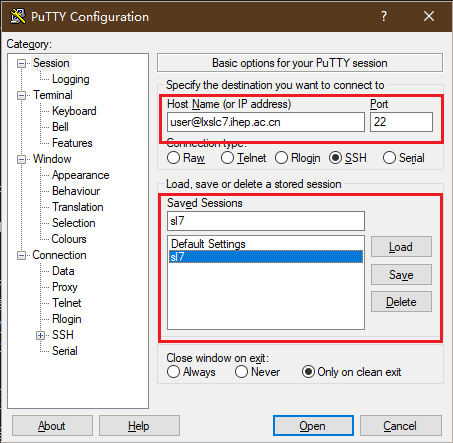
- Open Putty, and fill
Host Namewithuser@hostname,Portusually with22. Presssavebutton to save session. If there is a saved session, select the saved session, and pressloadbutton to load the session.
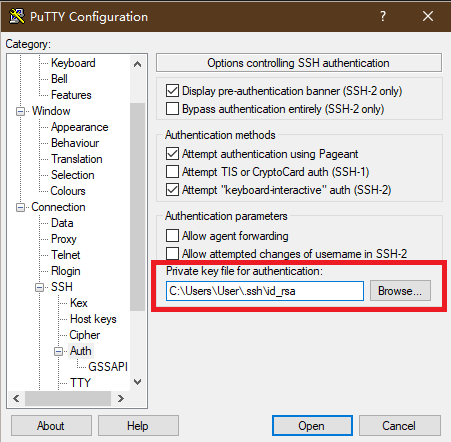
- If one wannt login cluster with private key,fill
Connection->SSH->Authwith own private key's path,as following.
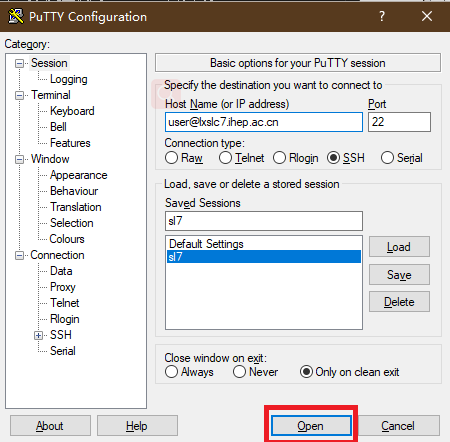
- Login clusters. Press the
Openbutton.
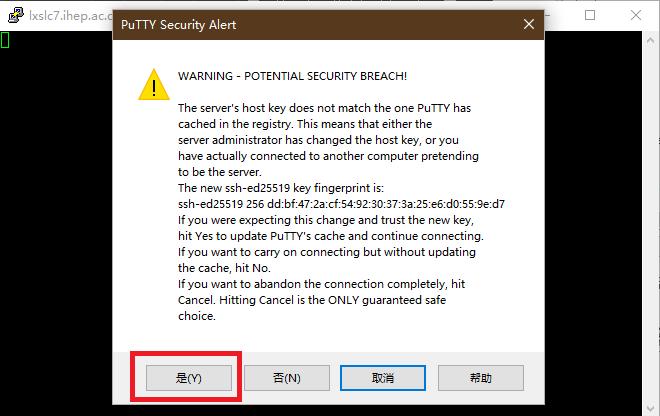
One might be encountered with the problem ofhost keynot matching, and pressYes.
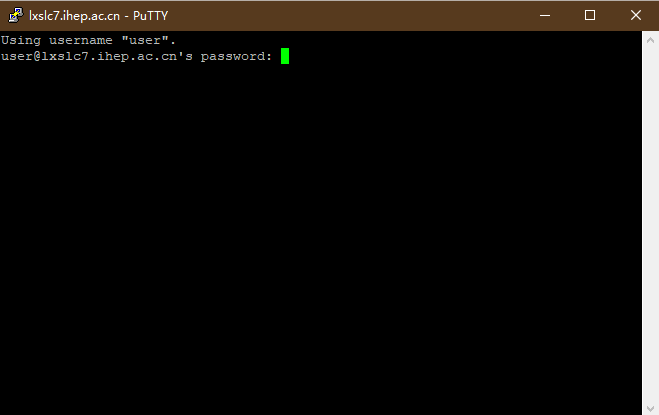
If one login without private key, one will be asked to provide password to login clusters.
5.1.3 Remote Desktop to Login Clusters
One can login clusters via remote desktop by way of VNC and Remote Desktop.
5.1.3.1 Login Clusters via VNC
5.1.3.1.1
For the first time using VNC, the remote system will ask you to generating a password for VNC login.
$[username@lxlogin-001 ~] vncserver
You will require a password to access your desktops.

Password:
Verify:

New 'lxlogin-001.ihep.ac.cn:1 (username)' desktop is lxlogin-001.ihep.ac.cn:1

Creating default startup script /afs/ihep.ac.cn/users/u/username/.vnc/xstartup
Starting applications specified in /afs/ihep.ac.cn/users/u/username/.vnc/xstartup
Log file is /afs/ihep.ac.cn/users/u/username/.vnc/lxlogin-001.ihep.ac.cn:1.log
vncserver on the clusters and then login via VNC softwares.
5.1.3.2 SSH X Forwarding
If you only need to run a graphical application remotely, SSH X forwarding is usually the most convenient method because you can stay in the terminal.
1) Linux
Linux systems with a graphical desktop usually include an X server. Add -X or -XY when logging in through SSH. The compression option -C4 can improve transfer speed:
You can also enable X forwarding in an SSH alias in ~/.ssh/config:
Then log in with:
2) Windows
X forwarding on Windows requires an X server. Common choices include Xming and vcxsrv. The following example uses Xming and Git for Windows.
- Download, install, and start Xming.
- Download and install Git for Windows.
- Open Git Bash and configure the local X server:
- Log in to the server and start a graphical program such as
firefox:
When logging in with Putty, enable X11 based on the SSH login settings. After that, X forwarding can be used.
MobaXterm includes an X server and supports X forwarding directly. Open MobaXterm and run:
After logging in, run the required graphical application.
3) macOS
macOS users can use the open-source XQuartz. The general steps are:
- Download and install XQuartz.
- Start
XQuartz.app:Applications>Utilities>XQuartz.app. - Right-click
XQuartzin the Dock, then selectApplications>Terminal. - Log in to the cluster in the new terminal:
- Run the required graphical application.
5.1.4 Software for SSH Client
There are many SSH clients for Windows. Here are some of the most commonly used ones:
- WSL for Windows - One of the preferred options on Windows 10, allowing full use of a Linux terminal environment.
- Putty - A popular and lightweight SSH client.
- Git for Windows - Equipped with an SSH client.
- cmder - Full version with ssh client.
- MobaXterm - With Xserver and SSH, supports tab.
- Solar Putty - A tabbed version of putty.
- WinSCP - A very good SSH client.
- Bitvise SSH - Free SSH Client.
- Xshell - Commercial software, with a free personal and educational version.
- SSH Shell Client
有问题?输入后跳转到对话页继续交流