2. Quick Start
User Account
Users need a computing environment account before they can use computing resources.
Account Application
- Users with a unified authentication account can apply for an AFS account at https://login.ihep.ac.cn.
- New users without unified authentication can apply online at https://login.ihep.ac.cn/regist.jsp.
Note
The cluster password is the same as the unified authentication password. No separate password setup is required. If the unified authentication password is changed, the cluster password will be synchronized.
Command-Line Login
Linux, macOS, and Windows can all be used to log in to the cluster. Linux or macOS is recommended.
For Windows 10 and later, Windows Terminal is recommended. For other Windows versions, install third-party SSH client software. For more details, refer to Account Management.
File Management
File Directories
After login, users enter their home directory by default, such as /afs/ihep.ac.cn/users/xxx/xxx.
The home directory contains a .bashrc file, which is executed automatically when the user logs in.
Recommended personal file storage locations:
| Directory | Stored content | Per-user quota |
|---|---|---|
| /afs/ihep.ac.cn/users/xxxx/[username] | Login configuration files | 500 MB |
| /scratchfs/xxxx | Temporary user files | 500 GB |
| /workfs/xxxx | Personal user files | 50 GB |
Experiment data should be stored in the corresponding experiment directories. See File Systems for detailed storage information and quotas.
File Upload and Download
Job Submission
HTCondor Jobs
HTCondor is an open-source batch system widely used in high-energy physics computing. It supports large-scale computing clusters and is flexible, making it especially suitable for high-throughput job scheduling at IHEP. Based on the cluster environment, the Computing Center has optimized HTCondor functionality and performance, developed centralized management and monitoring tools, and deployed a high-throughput scheduling system based on HTCondor. The HTCondor system currently supports most IHEP experiments, including BES, JUNO, DYW, LHAASO, and HXMT.
-
Prepare a job script.
Upload the job script to the corresponding directory, such as
/workfs/xxx/test.sh, or enter the directory and create the script withvi test.sh.A simple shell script:
-
Set executable permission for the script.
-
Submit the job.
-
Check job status.
Example output:
JOBID OWNER SUBMITTIME RUN_TIME ST PRI SIZE CMD 5519.0 xxx 2019-08-27 16:54 0+00:00:00 0 0.0 test.shJOBIDis the job ID,OWNERis the job owner,SUBMITTIMEis the submission time,RUN_TIMEis the running time,STis the status,PRIis the priority,SIZEis the virtual memory usage, andCMDis the job program name. -
Cancel jobs.
Delete jobs by job ID. Multiple jobs can be deleted at the same time. For example, to delete jobs 5519 and 5520:
Delete all jobs of the current user:
Slurm Jobs
Slurm is an open-source cluster manager and job scheduling system. It supports multiple types of compute nodes, including GPU and CPU nodes.
Slurm job submission workflow:
-
Prepare a job script.
Use an editor such as vim or emacs to edit the job script. Sample job scripts are available under
/cvmfs/common.ihep.ac.cn/software/slurm_sample_script.$ ssh <AFS_user_name>@lxlogin.ihep.ac.cn $ cd /cvmfs/common.ihep.ac.cn/software/slurm_sample_script $ ls -lht
Figure 1-4 Slurm template directory The simplest sample script can be viewed with:
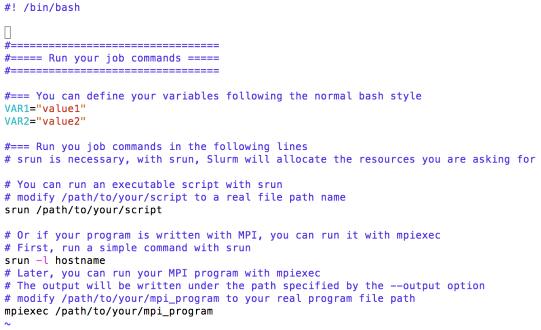
Figure 1-5 Slurm job script template In the script:
- Define the required variables, such as
VAR1andVAR2. - If you need to run your own script, use
srunand replace/path/to/your/scriptwith the actual script file name. - If you need to run a parallel program, use
srunfirst to trigger resource allocation, then usempiexecto run the parallel program. Replace/path/to/your/mpi_programwith the actual path of your parallel program.
- Define the required variables, such as
-
Submit the job.
After editing the script, submit it with:
$ hep_sub -slurm -part <partition_name> -g <group_name> -np <cpu_core_number> slurm_sample_script_2.shWhere:
-
<partition_name>is the queue name. Available queues can be queried with:Example output:
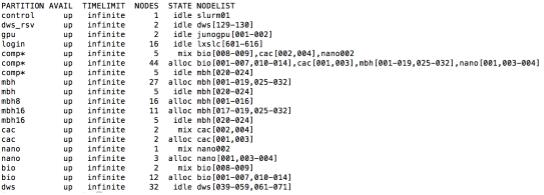
Figure 1-6 Example output of hep_clus Available queue names are shown in the first column. If you are not sure which queue to use, submit to the
compqueue, which is the default cluster queue. -
<group_name>is the group to which the job belongs. For example, if the job belongs to theofflinegroup of the BES experiment, use-g offline. -
<cpu_core_number>is the number of CPU cores required by the job. For example, if 30 CPU cores are required, use-np 30.
To submit
slurm_sample_script_2.shto thecompqueue, for theofflinegroup, requesting 30 CPU cores:Note: the queue name and job group name must be provided, otherwise job submission will fail.
-
-
Check job status.
After submission,
hep_subreturns a job ID. Use this ID to query the job:<job_id>is the ID returned byhep_sub. -
Get job results.
After the job finishes, if no output directory is specified, the default job result is saved in the submission directory. The output file format is
<job_id>.out. For example, if the job ID is1234, the output file is1234.out.
Software Usage
The platform uses the module command to load software environments. For detailed usage, refer to Environment Configuration.
The following example uses Python.
- Load the Python environment:
- Verify the Python environment:
$ python
Python 3.7.0 (default, Aug 27 2019, 16:54:48)
[GCC 4.8.5 20150623 (Red Hat 4.8.5-39)] on linux
Type "help", "copyright", "credits" or "license" for more information.
>>>
- Exit Python:
FAQ
See FAQ.
有问题?输入后跳转到对话页继续交流